Guide
How to Play Magic Core on a TV
Ways to play Magic Core on a TV, including Android TV, casting, and HDMI, plus controller and Wi-Fi tips for comfortable big-screen sessions.
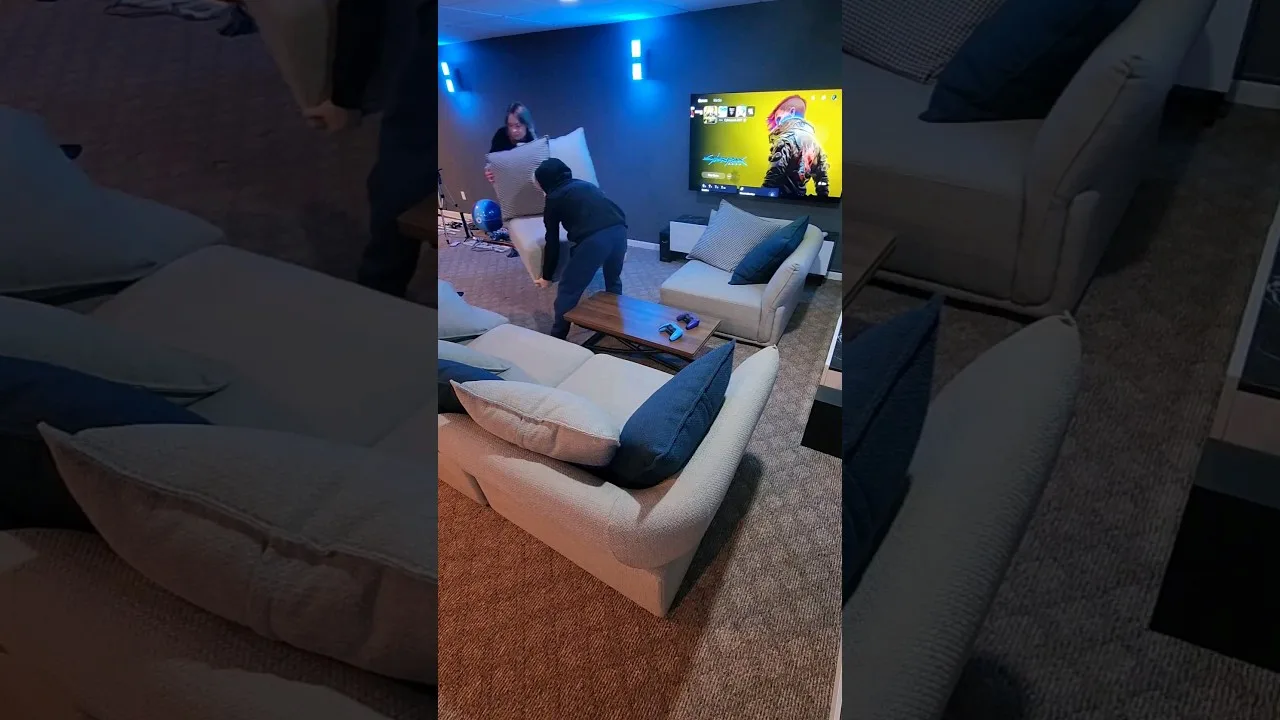

Ways to play Magic Core on a TV, including Android TV, casting, and HDMI, plus controller and Wi-Fi tips for comfortable big-screen sessions.
Playing on a TV is where cloud gaming makes the most sense: the game is already running on a powerful remote computer, so your television only needs to show the stream well, and suddenly the phone in your pocket is driving a big-screen experience. There are several ways to play Magic Core for Android on a TV, and the right one depends on the TV and devices you already own.
This guide walks through the main routes, what each needs, and the small setup details, like controller pairing and router distance, that decide whether a TV session feels like a console or like a compromise.
If your television runs Android TV or Google TV, or you have a streaming stick or box that does, the cleanest route is running the app on the TV device itself. The picture stays inside one device, there is no phone to cast from, and a controller paired to the TV completes a setup that behaves very much like a traditional console under the television.
Performance depends on the TV device's network connection more than its graphics power, because the game itself is streamed. Where possible, connect the TV or streaming device to the router with a network cable. It is the single most reliable upgrade for big-screen cloud play, removing Wi-Fi wobbles from the device that is hardest to move closer to the router.
Casting or mirroring your phone to the TV is the quickest way to try big-screen play with no new purchases, and most modern TVs and streaming devices support it. It works well for slower, relaxed games, and it is a fine way to show friends what you are playing or to enjoy a story game from the sofa.
Be honest about its limits, though. Mirroring adds its own delay on top of the cloud stream's delay, and fast action games can feel noticeably heavy. The phone also has to stay nearby, awake, and connected for the whole session. Treat casting as a convenient first step, and move to a direct TV setup if you find yourself playing on the big screen every week.
Many Android phones can send their screen to a TV through a USB-C to HDMI cable or adapter. A wired picture path removes the mirroring delay and the wireless guesswork, and it charges nothing extra in setup time once you own the lead. Check that your specific phone model supports video output over its port, because not every Android phone does.
With a cable, your phone sits near the TV, so pair a Bluetooth controller and settle on the sofa while the phone stays by the screen. Our best controllers for Magic Core guide will help you pick a pad that suits this kind of living-room setup, where comfort over long sessions matters more than pocket size.
Turn on your TV's game mode for the input you are using. Game mode switches off picture processing that looks nice for films but adds delay to every frame, and on a streamed game that extra delay stacks with the network delay. This one setting is the most common reason a TV setup feels strangely sluggish despite a good connection.
Sit at a sensible distance, keep the router's path to the TV as clear as you can, and close other heavy network use during play, just as you would on the phone. Our Magic Core Cloud device compatibility guide has more on which screens and devices handle sessions best if you are deciding what to buy or reuse.
Set the TV or the app to the picture size that matches the stream rather than stretching it, and let the TV upscale cleanly instead of forcing odd resolutions. For sound, the TV speakers are fine for most games, while a soundbar or headphones connected to the TV will give dialogue and effects more presence without adding meaningful delay.
Finally, think about the room. Dim direct light on the screen, keep a charger within reach of the sofa for the controller, and keep the phone or TV device ventilated. Big-screen cloud sessions tend to run longer than phone sessions, and a setup that stays comfortable for two hours is the one you will actually keep using.
Expect the first TV session to include ten minutes of honest fiddling, and do not judge the idea by that first evening. Picture mode, input choice, controller pairing, and where you sit all get dialled in once and then stay right for months. Take a moment during that first setup to label the input you used, reduce the TV's motion-smoothing features for your gaming input if the picture looks strangely floaty, and check for TV software updates while you are in the menus. Families should also agree where the controller lives and charges, because a pad that is always in its place turns starting a game into a thirty-second habit rather than a search through cushions, drawers, and yesterday's laundry.
Start with what you own: try casting tonight, add a cable if you want less delay, and consider an Android TV device with a wired connection if the big screen becomes your main way to play. Each step improves the same basic experience rather than replacing it.
With game mode on, a controller paired, and a stable connection to the TV, a streamed session on the sofa feels remarkably close to a local console. That is the quiet promise of playing this way: your library, on the biggest screen in the house, driven by the phone you already carry.

Lead APK Reviewer
Ryan O'Connell is the Lead APK Reviewer at magiccorecloud.com. He installs and tests every Magic Core Cloud build on real Android phones — checking the install flow, permissions, sign-in and cloud play performance — before any download button goes live on this site.
Continue with related articles that expand on setup, features, and troubleshooting.
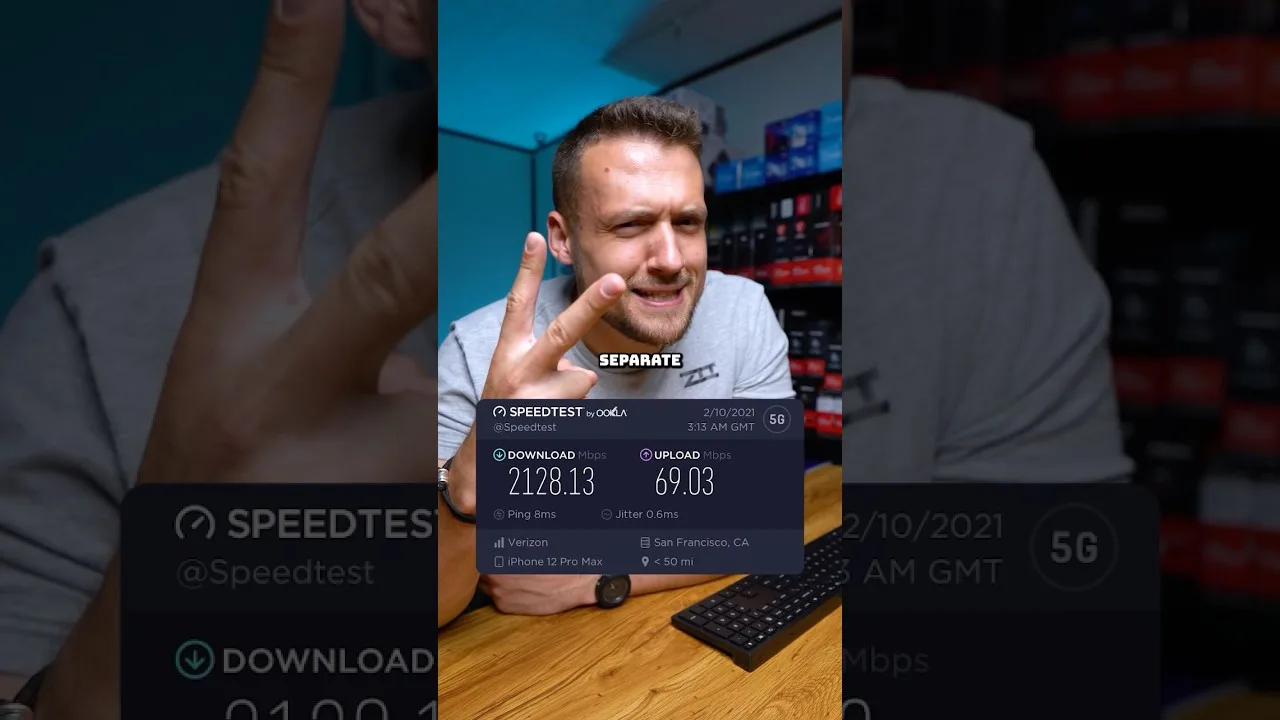
A clear guide to the download speed, ping, and connection stability Magic Core needs for smooth cloud gaming sessions on Android.
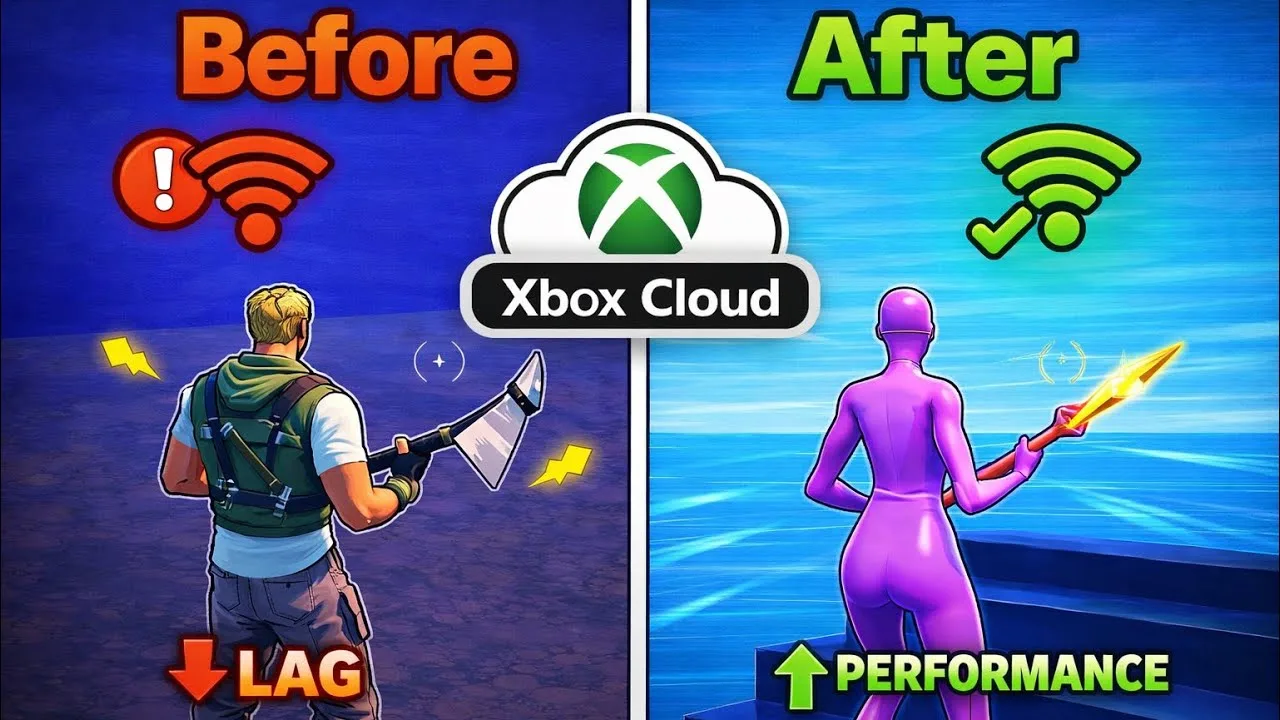
Step-by-step ways to cut input lag and stutter on Magic Core, covering Wi-Fi, router settings, background traffic, and in-app choices.
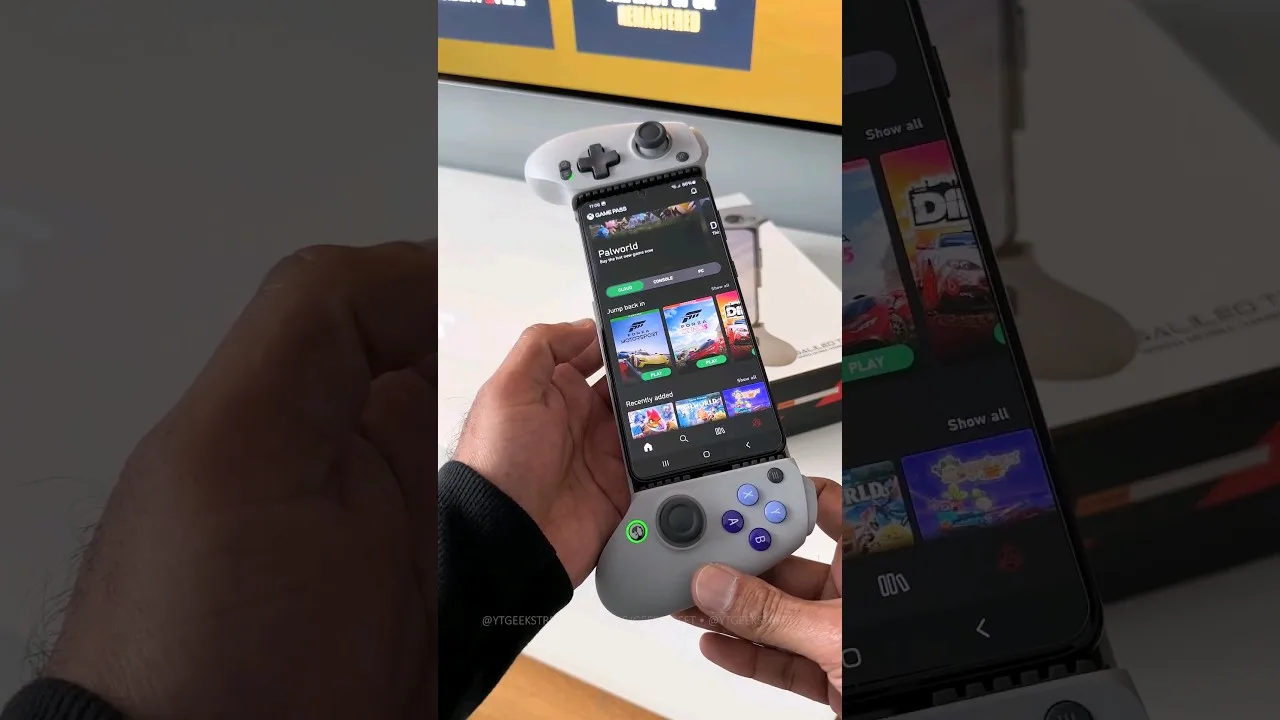
A practical guide to choosing and setting up a controller for Magic Core, from telescopic phone pads to standard Bluetooth gamepads.
Share this page