Guide
Best Wi-Fi Settings for Magic Core
The best Wi-Fi settings for Magic Core cloud gaming, covering band choice, router placement, channels, and quality-of-service for a steadier stream.


The best Wi-Fi settings for Magic Core cloud gaming, covering band choice, router placement, channels, and quality-of-service for a steadier stream.
For cloud gaming, your Wi-Fi is not background plumbing; it is half of the console. The stream that carries your game crosses it twice in spirit, down as picture and up as your inputs, so the best Wi-Fi settings for Magic Core APK download are the ones that keep that path fast, steady, and free of interruptions from the rest of the household.
You do not need an expensive gaming router to get most of the benefit. Placement, band choice, and a couple of sensible settings inside the router you already own account for most of the improvement players feel. This guide takes them in a practical order, from the free changes to the small purchases.
Put the router as close to where you play as life allows, raised off the floor, out in the open, and away from thick walls, metal objects, and other electronics that interfere. A router hidden in a corner cabinet at one end of the home is asking its signal to cross the whole building to reach a bedroom at the other end, and cloud gaming exposes that weakness immediately.
If your home is large or spread over floors, a mesh system or a well-placed extender can bring a strong signal to the gaming spot instead of asking one router to shout across the building. Our Magic Core internet speed requirements guide gives the targets your improved signal should be able to hit when you test it in the room where you actually play.
Most routers broadcast two networks: a longer-range 2.4 GHz band and a faster 5 GHz band. For gaming near the router, 5 GHz is normally the better choice because it carries more data and suffers less interference from neighbours and household devices. Its weakness is range, so a weak 5 GHz signal through several walls can be worse than a strong 2.4 GHz one.
Test both bands in your real playing spot rather than obeying a rule blindly. Play the same busy scene for a few minutes on each and keep the band that felt steadier. Some routers merge both bands under one name and choose for you; if your sessions are inconsistent, separating the names so you can choose manually is a worthwhile experiment.
Wi-Fi bands are divided into channels, and in flats and dense streets your router may be sharing a channel with many neighbours, like several conversations at the same table. Router settings usually offer an automatic channel choice, which is often fine, but a manual change to a less crowded channel can steady a connection that degrades every evening when the street comes home.
Free phone apps can show which channels nearby networks use, letting you pick a quieter one in minutes. Change one thing, then test for an evening before changing more. Our guide to reducing lag on Magic Core explains how to judge whether a change truly helped, using the same game and scene as a fair test rather than relying on first impressions.
Many routers include a quality-of-service feature that lets you favour one device or type of traffic. Prioritising the phone or TV you game on tells the router to keep your small, urgent inputs and stream flowing even when someone else starts a large download, which is precisely when an unprioritised session tends to wobble.
Keep expectations realistic: priority settings cannot create bandwidth your plan does not have, and they do nothing for a weak signal. They shine on a busy but basically healthy network. Combine them with a household agreement about big downloads during important sessions, and the router's help and the family's help point the same way.
Restart the router every so often, keep its software updated when the maker offers updates, and place your gaming position in the router's strong zone as a matter of habit rather than exception. Phones also benefit from forgetting and rejoining a network that has behaved oddly, which clears saved settings that can quietly go stale.
Finally, protect the network with a good password. An open or widely shared network invites unknown devices onto the same airspace your game depends on. A tidy, private, well-placed home network is invisible when it works, and for cloud gaming that invisibility is the whole point: you should notice the game, never the Wi-Fi carrying it.
If you share walls with many neighbours, expect your best channel and band choices to drift over time as their networks change, and recheck them a couple of times a year rather than treating setup as a one-time event. A five-minute scan on a busy evening tells you whether your once-quiet channel has become the street's favourite, and a single change can restore the calm your sessions had when you first set everything up. Keep a note of what worked, channel, band, and router position, so a factory reset or a replacement router never sends you back to experimenting from zero. Networks reward this small amount of housekeeping out of all proportion to the effort it takes.
Start free: move the router or your seat, choose the stronger band in your playing spot, and test a cleaner channel. Add priority settings for a busy household, and only consider new hardware when the building itself defeats a single router's reach.
An evening spent on these settings pays rent on every session afterwards. Cloud gaming rewards a steady network more than a fast-on-paper one, and most homes are one or two small Wi-Fi changes away from feeling that difference every time they play.

Lead APK Reviewer
Ryan O'Connell is the Lead APK Reviewer at magiccorecloud.com. He installs and tests every Magic Core Cloud build on real Android phones — checking the install flow, permissions, sign-in and cloud play performance — before any download button goes live on this site.
Continue with related articles that expand on setup, features, and troubleshooting.
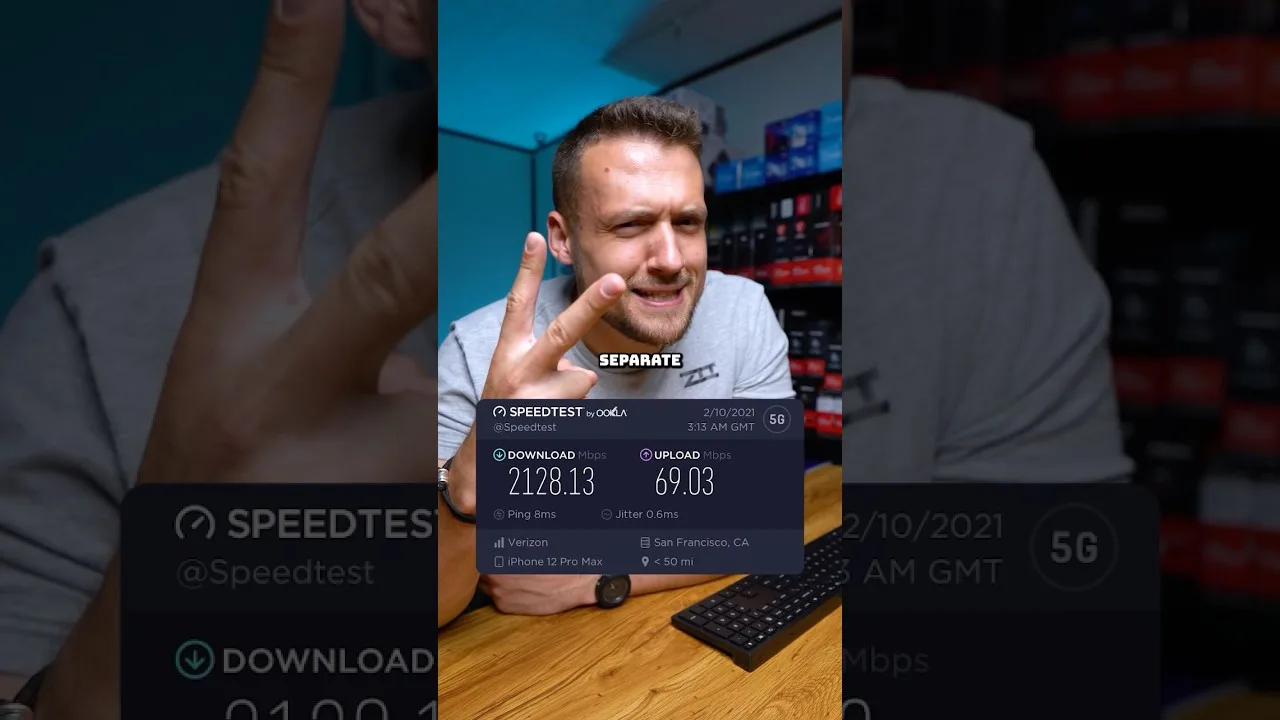
A clear guide to the download speed, ping, and connection stability Magic Core needs for smooth cloud gaming sessions on Android.
Step-by-step ways to cut input lag and stutter on Magic Core, covering Wi-Fi, router settings, background traffic, and in-app choices.
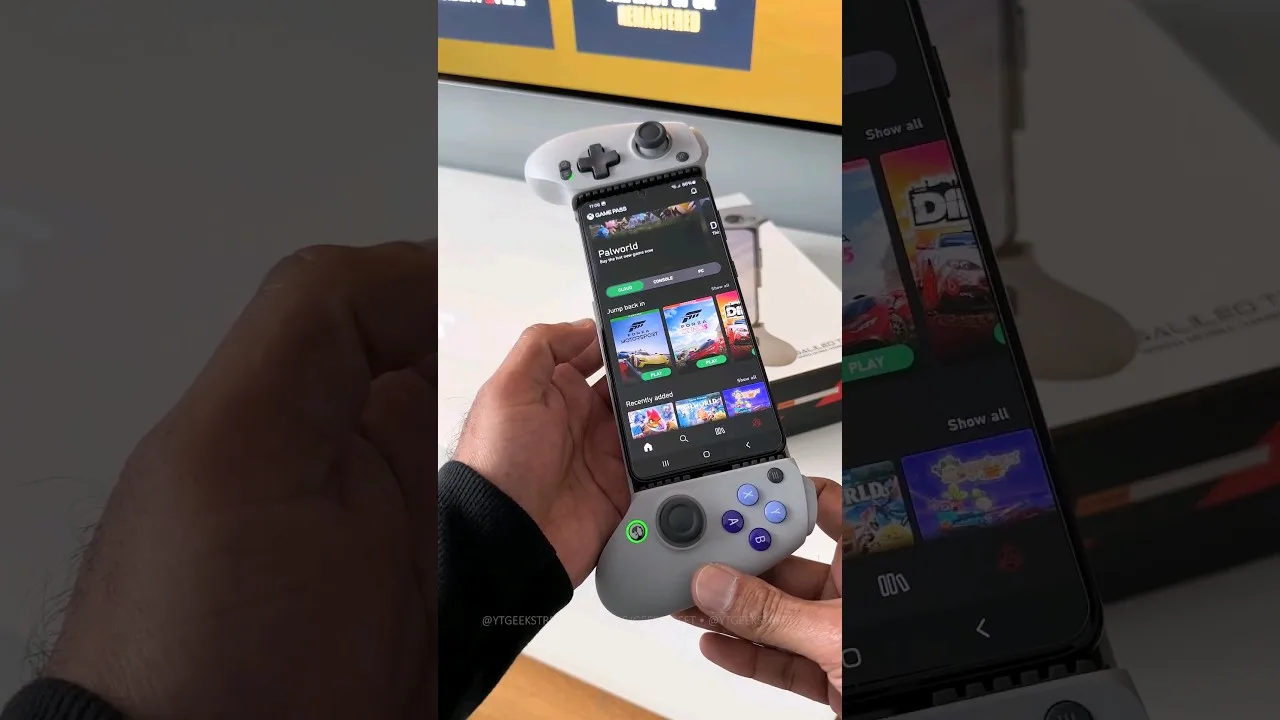
A practical guide to choosing and setting up a controller for Magic Core, from telescopic phone pads to standard Bluetooth gamepads.
Share this page